Designing Your Event (Theme)
Bluebird offers two main tools to help you make your event look its best: the Home Screen Builder, and the Theme editor.
The Theme settings can be found along the right-side navigation bar. The first thing you might notice when opening this page is the live preview:
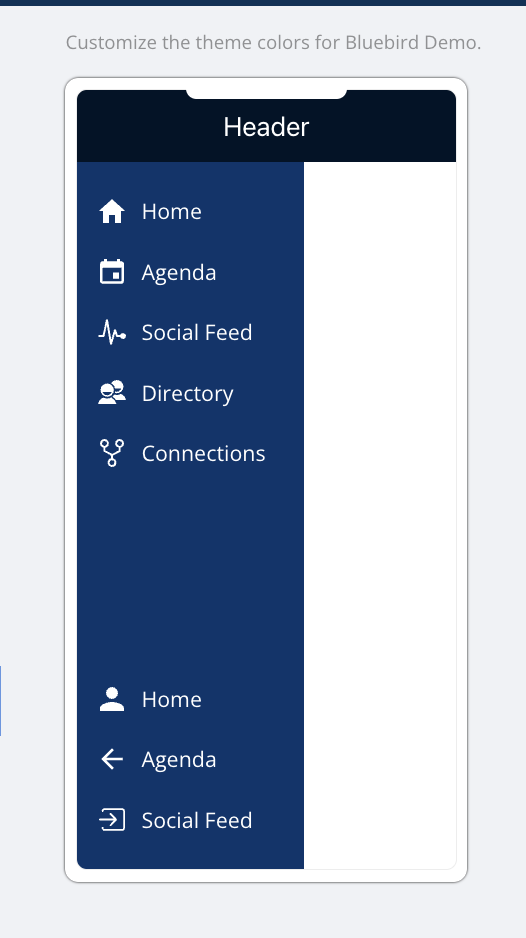
This preview will update live to reflect what Attendees will see when you make changes in the Theme settings!
There are three parts to the Theme settings:
- Header / Nav
- Theme
- Button
Header / Nav
The Header / Nav settings allow you to change the colors of the navigation bar (along the left side of the screen), app header (along the top of the screen), Nav icon and text, and Header text.
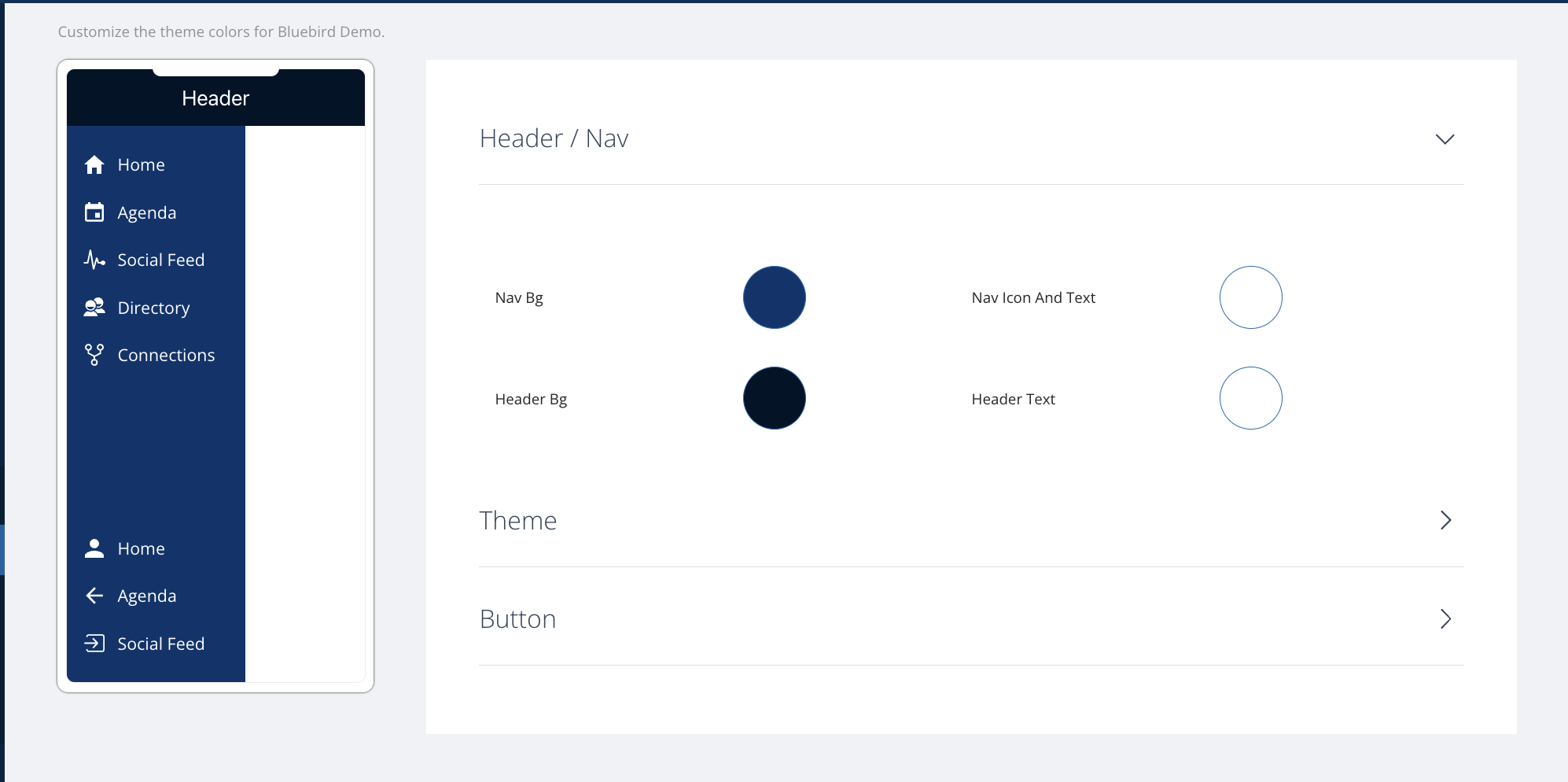
To customize one of these colors, click on the color preview to bring up the editor. There, you can adjust the color by manually selecting one from the gradient, or entering a specific HEX value for a color you've already chosen:
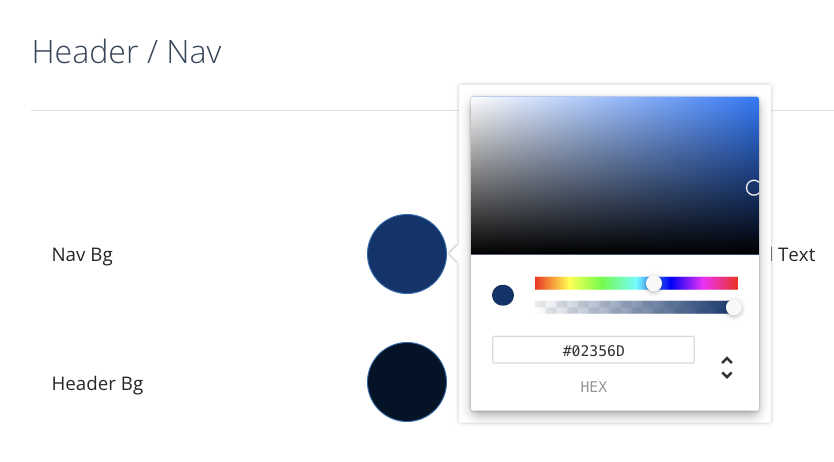
The changes will be live as soon as you make this selection, so you'll want to make sure you have your colors chosen before Attendees log in!
Theme
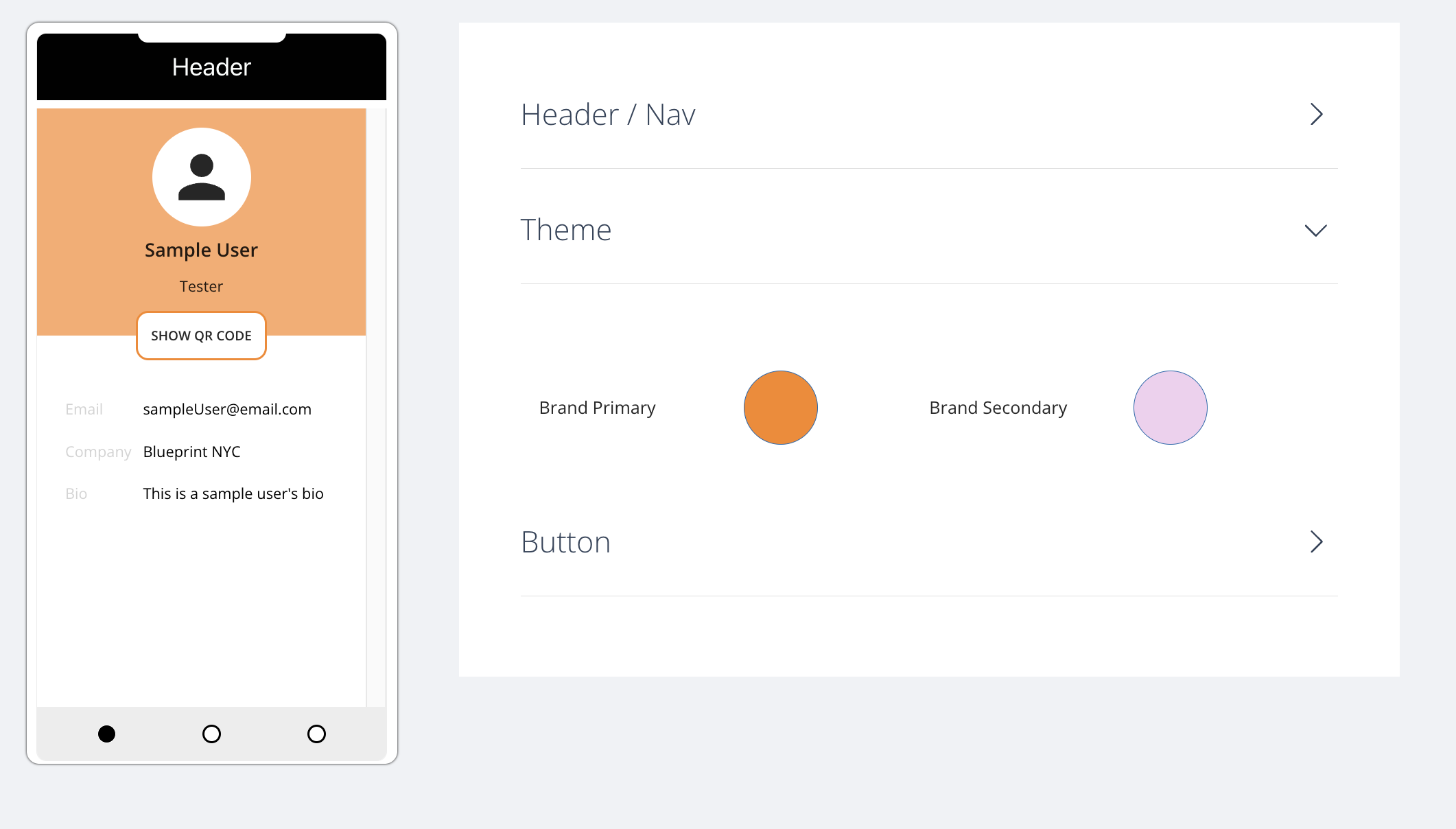
The Theme menu controls two settings:
- Brand Primary controls
- Brand Secondary controls